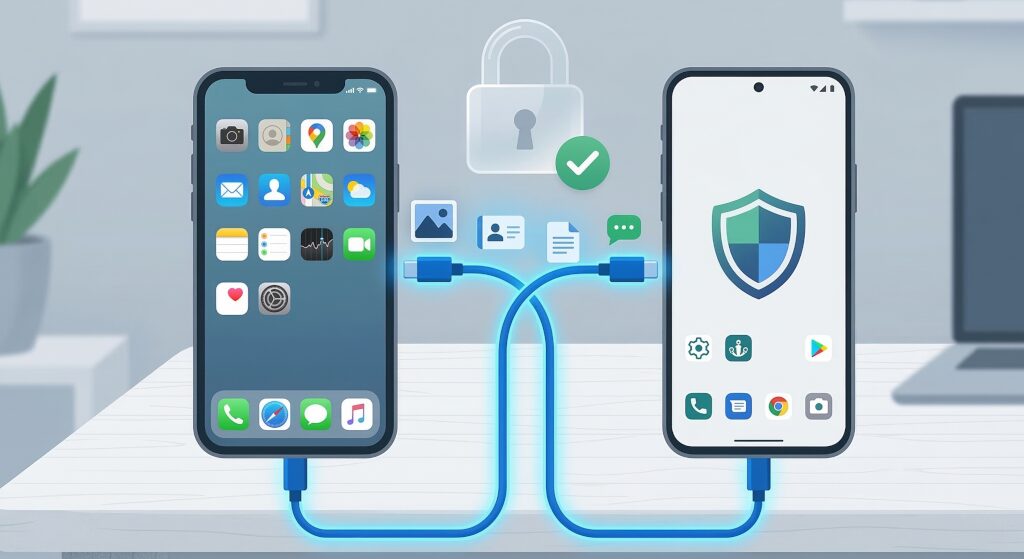
You just got a new phone running iodeOS or LineageOS. Congratulations. You’re free.
Except you’re not. Because all your stuff is still trapped on your old phone. And every guide online assumes you’re just switching from one surveillance rectangle to another surveillance rectangle with a different logo.
This guide is different. I’m talking about moving your contacts, messages, photos, apps, and files from Android or iOS to a de-googled phone without using google’s creepy cloud sync or Apple’s walled garden or some sketchy third-party app that wants $40 and access to your entire life.
Let’s fix this.
The Problem With Normal Transfer Methods
Most people just let google or Apple handle everything. Tap a button, sign in, wait 20 minutes, done.
Convenient? Sure. Private? Absolutely not.
You’re uploading your entire digital life to servers you don’t control, scanned by algorithms you can’t audit, tied to an account that tracks you across the internet. If you’re reading this, you already know why that’s a problem.
The “official” way is out. So what’s left?
What You’re Actually Moving
Before we start, let’s be clear about what matters:
Contacts. Names, numbers, email addresses.
Text messages. SMS and MMS (RCS is a google-controlled mess, ignore it).
Photos and videos. Your memories, not google’s training data.
Files. Documents, downloads, whatever’s in your storage.
Apps. This one’s tricky because you’re leaving the Play Store behind.
App data. Game saves, settings, login tokens (if you’re lucky).
You won’t get everything. Some apps don’t export data. Some iOS apps have Android equivalents that don’t talk to each other. That’s just reality.
But you can get most of it. And you can do it without handing everything to a megacorp.
Step 1: Export Your Contacts
From Android
If your old phone is Android, your contacts are probably in Google Contacts. (Even if you thought you were storing them “on the phone,” they’re probably synced to google. Check.)
Here’s how to grab them without logging into google on your new phone:
- On your old phone, open the Contacts app.
- Tap the menu (three lines or dots) and look for “Export” or “Import/Export.”
- Choose “Export to .vcf file” or “Export to storage.”
- Save the file. It’ll be called something like
contacts.vcf.
If your phone doesn’t have that option, you can do it from a browser:
- Go to contacts.google.com on a computer.
- Click “Export” from just above your contact list (it’s just an icon next to the print icon, there is no label).
- Choose “vCard (for iOS Contacts)” (it works for Android too).
- Download the file.
Now you have a .vcf file. You’ll import it on your new phone in a minute.
From iOS
Apple makes this slightly more annoying.
- On a computer, open iCloud.com and sign in.
- Go to Contacts.
- Click the gear icon (bottom left) and select “Select All.”
- Click the gear again and choose “Export vCard.”
You get a .vcf file. Same deal.
Import to Your New Phone
On your de-googled phone:
- Copy the
.vcffile to your new phone (via USB cable, SD card, or local file transfer). - Open your Contacts app (the default one is fine for most people).
- Tap the menu and choose “Import from .vcf file.”
- Select your file.
Done. Your contacts are local. No cloud, no sync, no google.
(If you want ongoing sync between devices without google, look into DAVx⁵ with a self-hosted Nextcloud or Radicale server. That’s outside the scope here, but it’s worth mentioning.)
Step 2: Move Your Text Messages
This is where it gets messy. SMS and MMS are stored differently on every phone, and most apps don’t make exporting easy.
From Android
The cleanest way is SMS Backup & Restore, from SyncTech on the Play Store.
- Install it on your old phone.
- Open it and tap “Backup.”
- Choose “Local Backup” (not google Drive).
- Save the file to your phone’s storage. It’ll be an XML file.
Transfer that file to your new phone, then:
- Install SMS Backup & Restore from Aurora (see below) on your new phone.
- Open it and tap “Restore.”
- Select your backup file.
Your messages are back. All of them. With timestamps and sender info intact.
(You can also export to JSON if you want a readable archive, but XML is better for importing.)
From iOS
Apple doesn’t let you export messages easily. At all.
You’ll need a tool called iSMS2Droid and an unencrypted iTunes/Finder backup on a computer. Locate the file named 3d0d7e5fb2ce288813306e4d4636395e047a3d28 (your SMS database). Move it to your new phone and let iSMS2droid convert it into the Android format. iSMS2Droid has more detailed instructions on their site.
Crucial Step: Before you turn off the iPhone, de-register iMessage at selfsolve.apple.com/deregister-imessage so you don’t miss incoming texts!
Step 3: Photos and Videos
This is the easiest part.
From Android or iOS
Just plug your old phone into a computer with a USB cable. It’ll show up as a drive (or use iTunes/Finder on Mac for iOS).
Copy everything from:
DCIM/Camera(Android)DCIMor Photos app export (iOS)
Paste it all into a folder on your computer. Then connect your new phone and copy it over.
If you want to skip the computer, use LocalSend (open-source, on the Play Store and App Store). It transfers files directly between devices over your local Wi-Fi. No internet, no cloud, no middleman.
- Install LocalSend on both phones.
- Open it, tap “Send,” select your photos.
- Choose your new phone from the list.
Fast. Private. Done.
Step 4: Files and Documents
Same process as photos. USB cable or LocalSend.
If your old phone has an SD card, just pop it out and put it in your new phone (if it has a slot). Instant transfer.
Step 5: Apps (The Hard Part)
You’re not using the Play Store anymore. That’s the whole point.
So how do you get your apps back?
With F-Droid and The Aurora Store, which both come pre-installed on every phone we sell.
Most of the apps you actually need have open-source alternatives on F-Droid:
- Browser: Fennec (Firefox fork), Duck Duck Go, or Brave.
- Email: K-9 Mail or FairEmail.
- Notes: Joplin, Markor, or Standard Notes.
- Maps: OsmAnd or Organic Maps.
- Messaging: Signal, Molly (Signal fork), or XMPP clients like Conversations.
- Photos: Fossify Gallery.
- File manager: Material Files.
- Calendar: Etar.
Browse F-Droid. You’ll find replacements for almost everything.
If you need something that’s only on the Play Store (banking apps, work apps, whatever), you can use the Aurora Store. It’s a Play Store client that doesn’t require a Google account. You can browse and download apps anonymously. Some apps won’t work without Google Play Services, but most will.
App Data (Good Luck)
Most apps don’t let you export your data. That’s just how it is.
Some apps (like Signal) have built-in backup features. Use them if they exist.
Otherwise, you’re starting fresh. It’s annoying, but it’s also kind of freeing.
Step 6: Anything Else?
A few random things people forget:
Call Logs
SMS Backup & Restore (the same app from earlier) can back these up too. Same process.
Authenticator Apps (2FA)
If you use google Authenticator or Authy, export your codes before you wipe your old phone.
Better yet, switch to Aegis (F-Droid). It’s open-source, encrypted, and lets you export your vault as a file you control.
If you’re stuck with Authy and didn’t back up, you’ll have to reset 2FA on every account manually. Fun times.
Bookmarks and Browser Data
Export bookmarks from Chrome or Safari as an HTML file, then import them into your new browser (Fennec, Brave, whatever).
Most browsers have an import/export option in settings.
Music and Podcasts
Copy your files manually, or use open-source apps like VLC (for music) and AntennaPod (for podcasts). Both are on F-Droid.
If you’re using Spotify or Apple Music, you’re tied to those apps. You can install them via Aurora Store if you really need them, but consider switching to local files or self-hosted options like Navidrome or Jellyfin.
The Big Picture
Here’s what you just did:
- Moved your contacts without touching google Contacts or iCloud.
- Backed up and restored your messages locally.
- Transferred photos and files without uploading them anywhere.
- Replaced proprietary apps with open-source alternatives.
- Started using your phone like it’s actually yours.
Is it more work than tapping “Transfer Data” and signing into google? Yes.
Is it worth it? If you’re reading this, you already know the answer.